Complete Guide to Warranty Registration in Dyrect
Warranty Registration Using Dyrect
Warranty registration connects a customer, purchased product, purchase record, and warranty policy in Dyrect. The resulting digital warranty record supports coverage confirmation, customer access, future service, claim validation, reporting, and product traceability.
This guide covers the complete registration process for administrators, dealers, operations teams, and support teams. For the wider warranty lifecycle, return to Warranty Management Using Dyrect.
Documentation Index
| Understand the registration process | Registration lifecycle |
| Review the required information and access | Requirements before accepting registrations |
| Prepare products and SKUs | Product catalogue preparation |
| Assign coverage periods and rules | Warranty terms and coverage |
| Create the customer form | Registration form configuration |
| Select a registration channel | Registration methods |
| Understand the customer submission journey | Customer registration process |
| Review new registrations | Registration review and validation |
| Approve or reject a registration | Registration decisions |
| Understand registration and warranty statuses | Statuses used in Dyrect |
| Correct registration information | Registration corrections |
| Manage certificates and digital warranty records | Warranty confirmation and certificate |
| Upload registrations in bulk | Bulk warranty import |
| Create registrations from Shopify orders | Automatic Shopify registration |
| Validate external serial numbers | Serial-number management |
| Resolve duplicate, incomplete, or invalid submissions | Registration exceptions |
| Find and export records | Search, filters, and exports |
| Configure customer messages | Customer communication |
| Measure registration performance | Registration reporting |
| Review the program before publication | Publication and quality review |
| Find related procedures | Related Dyrect guides |
Registration lifecycle
A registration begins when customer or order information reaches Dyrect. The platform stores the submission, applies the configured validation and approval rules, calculates the coverage period, and creates the warranty record.
The registration record preserves the information used to reach the decision. This history supports future claim review, customer assistance, audits, and product analysis.
Requirements before accepting registrations
Registration accuracy depends on the information configured before the form or integration becomes available to customers.
The responsible administrator should confirm the following:
| Requirement | Information to confirm |
|---|---|
| User access | Team members have permission for Products, Registrations, Forms, Customers, Orders, and relevant configuration areas |
| Brand record | Brand name, logo, colours, customer contact information, and customer-facing terms are current |
| Product catalogue | Eligible products, SKUs, categories, variants, and product status are accurate |
| Warranty policy | Duration, start-date rule, exclusions, proof requirements, transfer rules, and eligibility conditions are documented |
| Serial-number policy | Products requiring serialization have a defined validation source |
| Registration form | Required fields, optional fields, validations, consent text, and confirmation content are approved |
| Approval process | Automatic activation or administrative review has been selected |
| Communication | Submission, approval, rejection, and information-request messages are configured |
| Registration channels | Customer form, QR code, dealer, import, Shopify, or other integration channels are confirmed |
Complete these items for each brand or program before sharing the registration form.
Product catalogue preparation
Every registration must connect to an eligible product record. Product information controls the item presented to the customer and can influence warranty duration, serial validation, form behavior, reporting, and claim eligibility.
Information required for a product
A product record commonly contains:
- Product name
- Brand
- SKU
- Category
- Model or variant
- Product image
- Product description
- Product status
- Warranty duration
- Serial-number requirement
- Applicable warranty terms
The SKU should uniquely identify the relevant product or variant. Consistent SKU values are especially important for product imports, Shopify synchronization, bulk registration, and reporting.
Adding or importing products
Use Add a Single Product when creating an individual product. Use Import Products when preparing several product records together.
After product creation, review the customer-facing name, SKU, warranty duration, status, and serial-number behavior. Use Update Product Details for later revisions.
Product catalogue review
Duplicate SKUs, inactive products, missing warranty terms, and incorrect variants can prevent accurate registration. Review the catalogue whenever products are launched, retired, renamed, or synchronized from another system.
Warranty terms and coverage
Warranty terms determine the coverage applied to an approved registration. The policy should state which product is eligible, when coverage begins, how long it continues, which evidence is required, and which conditions are excluded.
Coverage rules can vary according to:
- Product or SKU
- Product category
- Model or variant
- Country or region
- Dealer or retailer
- Sales channel
- Purchase date
- Manufacturing date
- Promotional campaign
- Extended-coverage purchase
Coverage start date
The start date may derive from the recorded purchase date, order date, manufacturing date, registration date, or another approved policy date. The selected rule should remain consistent across the form, imported records, Shopify orders, certificates, and claim validation.
Coverage duration
Duration can be recorded in days, months, or years according to the configured product terms. Dyrect uses the start date and duration to determine the warranty end date.
For extended-coverage configuration, refer to the Extended Warranty Configuration Guide.
Registration form configuration
The registration form collects the customer, product, and purchase information required by the warranty policy. It can also collect consent, invoice files, serial numbers, dealer information, and custom responses.
Common form fields
| Field group | Common fields | Operational use |
|---|---|---|
| Customer | Name, email address, mobile number, address, country | Identifies the owner and communication recipient |
| Product | Product, model, variant, SKU | Connects the submission to the eligible catalogue record |
| Purchase | Purchase date, purchase channel, dealer, retailer, order number | Establishes purchase context and coverage start |
| Validation | Serial number, invoice, receipt, product image | Supports identity and eligibility review |
| Consent | Terms acceptance, privacy consent, communication preference | Records customer consent according to the brand policy |
| Custom information | Installation date, location, usage type, or program-specific fields | Supports additional business requirements |
Mark a field as required only when the information supports registration, policy validation, communication, or compliance. Required fields should use labels that explain the expected value. Date, email, mobile, file, and serial fields should use the corresponding validation format.
Product selection
The form should present only eligible and active products. Product names and images should help customers select the purchased item accurately. If registrations use a product-specific QR code or URL, confirm that the correct product is preselected.
Branding and customer content
Apply the approved brand logo, colours, instructions, policy text, consent text, and confirmation message.
Use:
Form testing
Submit test registrations for each supported product and channel. Confirm field validation, product selection, serial behavior, invoice upload, policy acceptance, confirmation content, approval behavior, coverage dates, and customer messages.
Registration methods
Dyrect supports several registration channels. The selected channel should align with the sales process and the information available at purchase.
Customer self-registration
The customer opens a branded form through the brand website, customer portal, product page, email, or shared URL. The customer selects the product, provides purchase information, uploads required evidence, accepts the applicable terms, and submits the form.
This method provides direct customer consent and can collect information unavailable from the sales channel.
QR code registration
A QR code can direct the customer to the relevant registration experience. QR codes can be printed on packaging, product labels, manuals, inserts, or retail material.
Product-specific QR codes should open the intended product or program. General QR codes should present a product selection step. Test each printed code with multiple mobile devices before distribution.
Dealer registration
An authorized dealer can create a registration for the customer using the sale information available at the point of purchase. Dealer-submitted records should identify the dealer and customer separately.
The dealer process should define who receives the confirmation, which proof is required, whether the dealer can correct a submission, and whether an administrator must approve the registration.
Bulk registration
Bulk registration imports several warranty records through a structured file. This method supports historical migration, dealer batches, offline sales, corporate sales, and other high-volume requirements.
See Bulk warranty import for the complete process.
Automatic registration
An integration can create a registration from order and product information. Shopify can synchronize products, customers, and orders, then create warranties according to the configured automation rules.
See Automatic Shopify registration for operational guidance.
Customer registration process
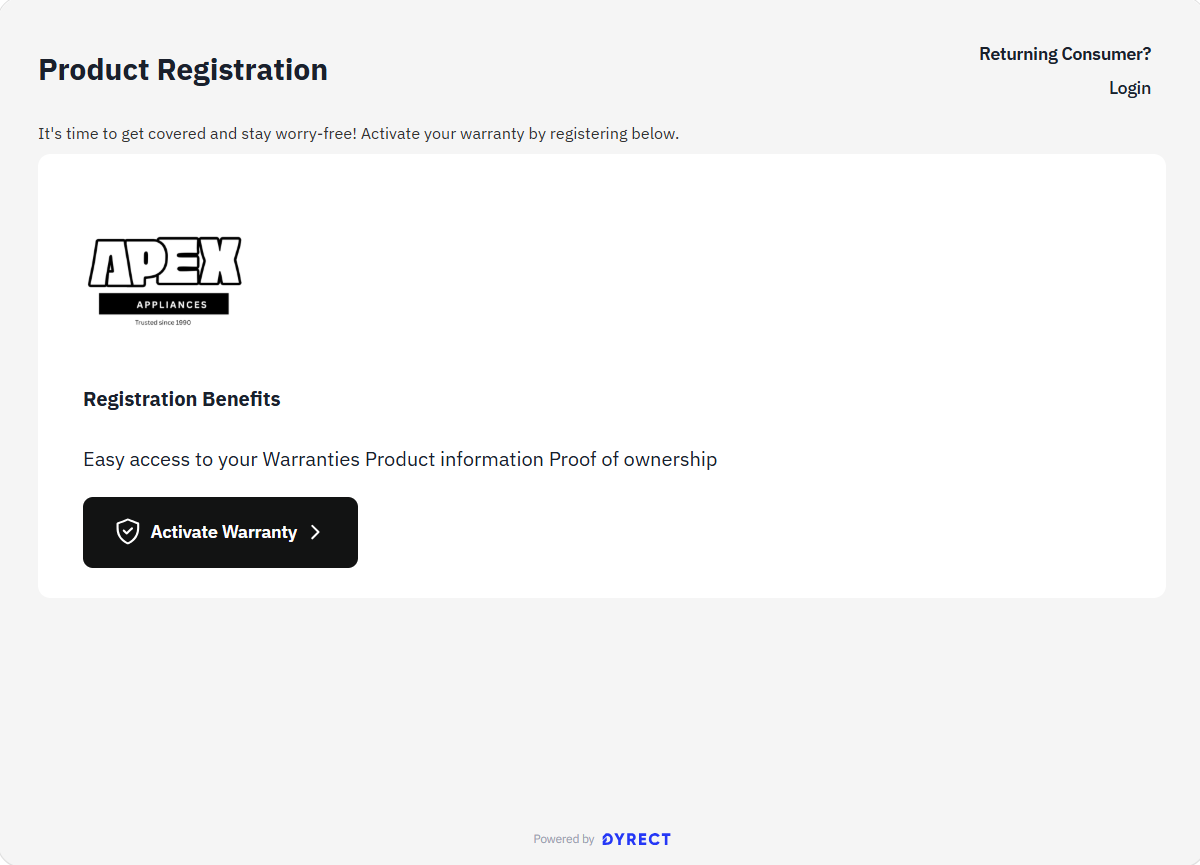
The customer-facing process should explain the required information and the outcome of submission.
- The customer opens the registration form or scans the relevant QR code.
- The customer selects or confirms the purchased product.
- The customer provides identity and contact information.
- The customer provides purchase date, channel, dealer, retailer, or order details as required.
- The customer enters the serial number when serialization applies.
- The customer uploads the invoice or other requested evidence.
- The customer reviews and accepts the applicable policy and consent statements.
- The customer submits the form.
- Dyrect records the submission and displays the configured confirmation.
- The customer receives the configured email or message.
Registration review and validation
Administrators can review registrations from the Registrations area. The list can contain warranty ID, customer name, registration status, duration, start date, end date, product information, and other configured columns.
Open a registration to review the complete record. Available information can include:
- Warranty ID
- Registration date
- Customer details
- Product and SKU
- Purchase date
- Dealer or retailer
- Serial number
- Invoice copy
- Warranty duration
- Start and end dates
- Registration status
- Warranty status
- Certificate
- Policy information
- Support requests
- Attachments
- Activity history
Validation sequence
Review the record in a consistent order:
- Confirm that the customer information is complete.
- Confirm that the selected product matches the invoice or order.
- Confirm that the SKU or variant is correct.
- Verify the purchase date and sales channel.
- Verify the serial number when required.
- Review the invoice or proof of purchase.
- Check for an existing registration for the same product identity.
- Confirm the applicable coverage terms.
- Confirm the calculated start date and end date.
- Record the registration decision.
The activity history should preserve significant review and status events.
Registration decisions
The approval process can use automated rules or administrative review.
Approval
Approve a registration when the customer, product, purchase, and policy information satisfies the applicable requirements. Approval activates or confirms the warranty according to the program configuration.
Use Approve a Warranty Registration for the procedural steps.
Additional information
If the registration can be completed after correction or additional evidence, request the required information and retain the record in the applicable pending state. The message should identify the missing field or document and explain the required response.
Rejection
Reject a registration when the submission fails the applicable policy and cannot be corrected through additional information. Record a specific reason, such as an ineligible product, invalid purchase, invalid serial number, duplicate registration, altered evidence, or submission outside the permitted period.
The customer message should state the decision and the relevant policy reason.
Statuses used in Dyrect
Registration status and warranty status describe different parts of the record.
| Status type | Example | Meaning |
|---|---|---|
| Registration status | Pending | The submission awaits review, evidence, or a decision |
| Registration status | Approved | The submission satisfied the configured requirements |
| Registration status | Rejected | The submission failed the applicable requirements |
| Warranty status | Active | Coverage is currently available according to the recorded dates and policy |
| Warranty status | Expired | The recorded coverage end date has passed |
Account configuration can include additional statuses. Document each configured status, its owner, permitted transitions, and customer message.
Registration corrections
Corrections may be required after submission or approval. Common correction requests include customer contact updates, purchase-date revisions, invoice replacement, product correction, serial-number correction, dealer correction, or coverage-date review.
Before editing a record, confirm the evidence supporting the revision. Preserve the previous value and the reason through the available activity or audit history. Coverage-affecting revisions should receive approval from the authorized warranty administrator.
If an approved record has restrictions on direct editing, use the applicable Dyrect correction process or contact the authorized account administrator.
Warranty confirmation and certificate
After approval or activation, the customer can receive a confirmation message and access the digital warranty record. Depending on configuration, Dyrect can provide a warranty certificate or digital warranty card.
The confirmation should contain:
- Customer name
- Product name
- Warranty ID
- Registration date
- Coverage start date
- Coverage end date
- Warranty status
- Customer portal link
- Support or claim link
- Brand contact information
Review the certificate details whenever product terms, brand content, or message templates are revised.
Bulk warranty import
Bulk import creates several registrations from a structured file. Use Import Warranty in Bulk for the current import template and upload procedure.
Preparing the file
Download the current template from Dyrect. Preserve its column names and required format. Populate one registration per row.
Common import information can include customer name, email, mobile number, product, SKU, purchase date, serial number, dealer, order reference, warranty duration, start date, and end date. The current template determines the accepted columns.
Before upload:
- Match product values with existing Dyrect products.
- Match SKU values exactly.
- Use the required date format.
- Remove duplicate rows.
- Confirm serial-number uniqueness.
- Confirm email and mobile formats.
- Confirm required columns contain data.
- Preserve the template structure.
Upload review
Upload the completed file through the warranty import procedure. Review the validation result before confirming the import. Correct rejected rows and upload those rows again using a separate file.
After completion, compare the imported count with the source-file count. Review sample records across different products, dealers, dates, and coverage periods.
Automatic Shopify registration
Shopify integration can synchronize product, customer, order, and purchase information with Dyrect. Automatic registration can then create warranty records for qualifying orders according to the configured rules.
Use:
Before activation, confirm product and variant mapping, eligible order status, coverage start rule, duration source, customer communication, duplicate handling, cancellation behavior, refund behavior, and historical-order scope.
Test with a controlled Shopify order. Confirm that the customer, order, product, SKU, purchase date, start date, end date, and status reach Dyrect accurately.
Serial-number management
Serial numbers connect an individual physical product with its model, owner, registration, coverage, and service history. They support duplicate detection, fraud review, product traceability, and claim eligibility.
Serial validation should confirm:
- The value exists in the authorized serial source when required.
- The value belongs to the selected product or SKU.
- The value has the expected format.
- The value is unused by another active ownership record, except when the policy permits transfer.
- The value remains eligible for registration.
Use Import External Serial Numbers when loading authorized serial values from another system.
Registration exceptions
Use documented resolution rules for recurring exceptions.
| Exception | Review | Resolution |
|---|---|---|
| Duplicate registration | Compare customer, product, serial number, order, and purchase information | Retain the valid record and close, merge, or reject the duplicate according to policy |
| Missing invoice | Confirm whether another proof source is accepted | Request accepted evidence or reject according to policy |
| Invalid serial number | Check format, product mapping, authorized source, and previous use | Correct a verified typing error or reject an ineligible value |
| Incorrect product | Compare submission with invoice, order, SKU, and product image | Correct the product after verification |
| Incorrect purchase date | Review invoice, order, or dealer record | Update the date and recalculate coverage after authorization |
| Incomplete customer information | Identify the required missing fields | Request the missing information |
| Late registration | Review the permitted registration period and purchase evidence | Approve through authorized exception or reject according to policy |
| Inactive product | Confirm product status and historical eligibility | Activate the product for valid historical records or select the correct product |
| Shopify mismatch | Review product mapping, variant, SKU, and order data | Correct integration mapping and reprocess according to the integration procedure |
Every exception decision should identify the reviewer, supporting evidence, action, date, and customer communication.
Search, filters, and exports
The registration list can support search, status filters, date filters, brand filters, record counts, and exports. Available fields depend on account configuration.
Use warranty ID, customer information, product, SKU, serial number, order reference, or date filters to locate a record. Confirm the identity of the customer and product before sharing warranty information or editing data.
Exports can support audits, migration, reconciliation, reporting, dealer reviews, and analysis. Apply the relevant filters before export and protect files containing customer or purchase information.
Refer to Export Data from Dyrect.
Customer communication
Registration communication should explain the current stage and any customer action.
| Event | Message content |
|---|---|
| Submission received | Registration reference, submitted product, review status, and expected next action |
| Warranty activated | Warranty ID, product, coverage dates, status, and customer access link |
| Additional information required | Missing information, accepted format, submission method, and response deadline |
| Registration rejected | Decision, policy reason, reference, and available escalation route |
| Record corrected | Revised information and any effect on coverage |
| Coverage nearing expiry | Expiry date and available renewal or extended-coverage option, when applicable |
Messages should use the approved brand identity and support contact information. Test every template with realistic customer and product values.
Registration reporting
Registration reports help administrators monitor adoption, data quality, approval workload, product ownership, and customer engagement.
Recommended measures include:
- Total registrations
- Registrations by date
- Registrations by product or SKU
- Registrations by brand
- Registrations by dealer or channel
- Pending, approved, and rejected counts
- Active and expired warranty counts
- Registration completion rate
- Average approval time
- Rejection reasons
- Duplicate rate
- Invoice-missing rate
- Serial-validation failure rate
- Customer, dealer, bulk, QR, and Shopify registration volumes
Review trends regularly. A rise in product-selection errors can indicate catalogue or QR mapping issues. A rise in serial failures can indicate formatting, import, or product-mapping issues. A rise in missing invoices can indicate unclear form instructions.
Publication and quality review
Complete an end-to-end review before sharing a form, QR code, dealer process, import template, or automatic registration rule.
Test these scenarios:
- Valid customer registration
- Required field left empty
- Invalid email or mobile format
- Valid serial number
- Invalid serial number
- Previously registered serial number
- Invoice upload
- Missing invoice
- Valid purchase date
- Ineligible purchase date
- Automatic approval
- Administrative approval
- Additional-information request
- Rejection
- Certificate or digital warranty delivery
- Customer portal access
- Bulk import with valid and invalid rows
- Shopify order registration
For every scenario, verify the stored data, status, coverage dates, customer message, activity history, search result, and report output.
Related Dyrect guides
For claim eligibility, support tickets, repairs, replacements, and work orders, continue to Claims Management Using Dyrect