How to Enable Cash Coupon Code in Warranty Registration Form
Overview
The Cash Coupon Code feature allows businesses to provide discount coupons to customers after successful warranty registration. Once configured, customers can receive and redeem coupon codes directly from the Thank You page of the warranty registration form.
This guide explains how to:
- Enable the required Shopify permissions
- Configure the Coupon Widget in the warranty registration form
- Create coupon rules and conditions
- Publish the form successfully
Prerequisites
Before setting up the Cash Coupon Code feature, make sure:
- Your Shopify store is connected with Dyrect
- You have access to the Dyrect Back Office
- You have admin access to Shopify permissions
Step 1: Enable Shopify Permissions
Navigate to Shopify Integration Settings
- Login to the Dyrect Back Office.
- Go to:
Settings → Integrations → Shopify
- Open the Configuration tab.
The following permissions must be enabled:
- Read Products
- Read Orders
- Read Customers
- Write Products
- Read Discounts
- Write Discounts
- Read Draft Orders
- Write Draft Orders
- Write Orders
Once enabled, click on Grant Permission.
This will redirect you to your Shopify store where you must approve the required permissions.
Step 2: Open the Warranty Registration Form
After Shopify permissions are enabled:
- Go to:
Configuration → Forms → Warranty Form
- Open the warranty registration form that you want to configure.
- Navigate to the Thank You page section of the form.
Step 3: Add the Coupon Widget
- On the left-side panel, click on: Add elements
- Select Coupon Widget.
- The coupon widget will now appear on the Thank You page.
- From the right-side settings panel, click on + Add.
Add Coupon Widget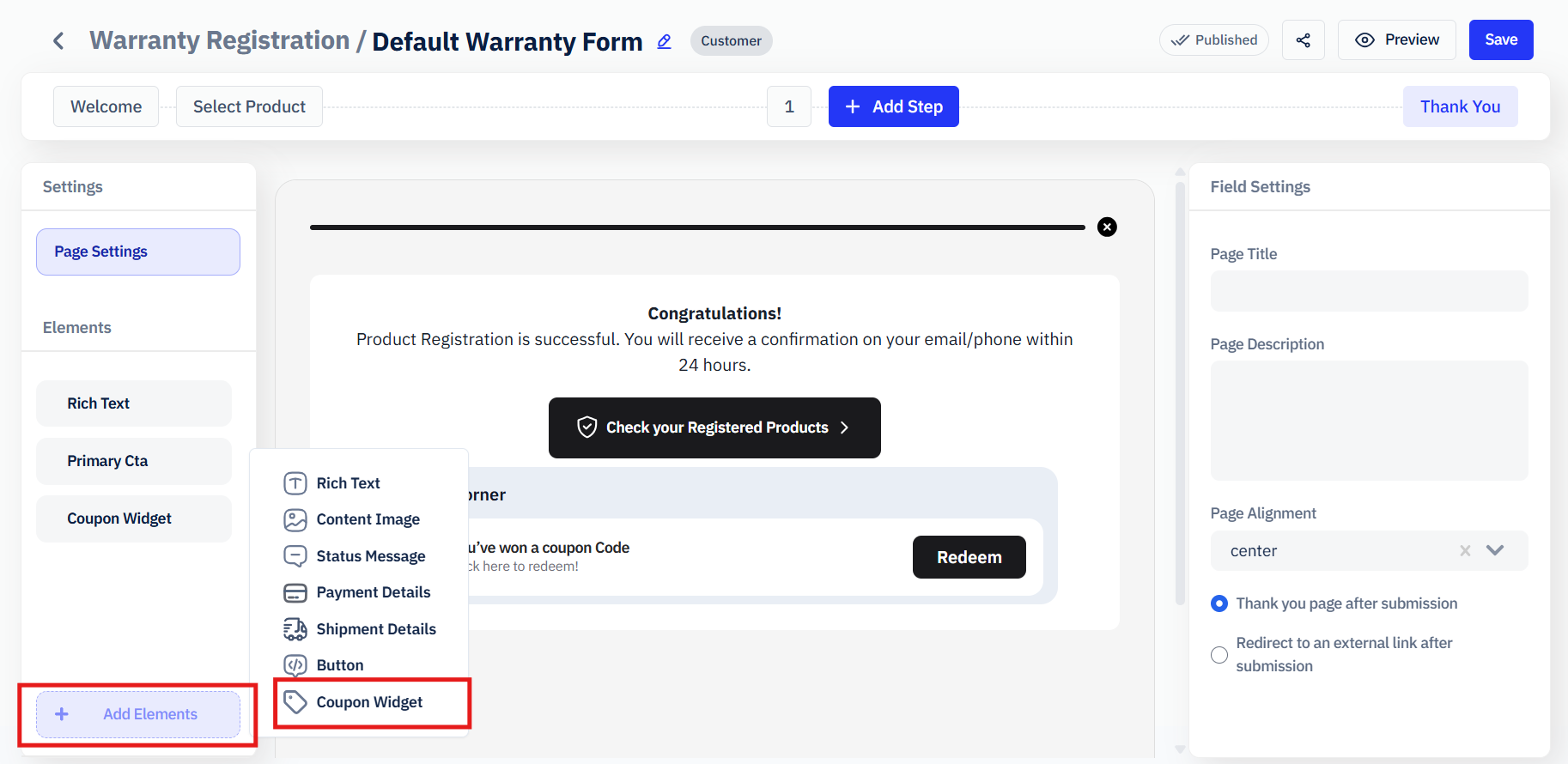
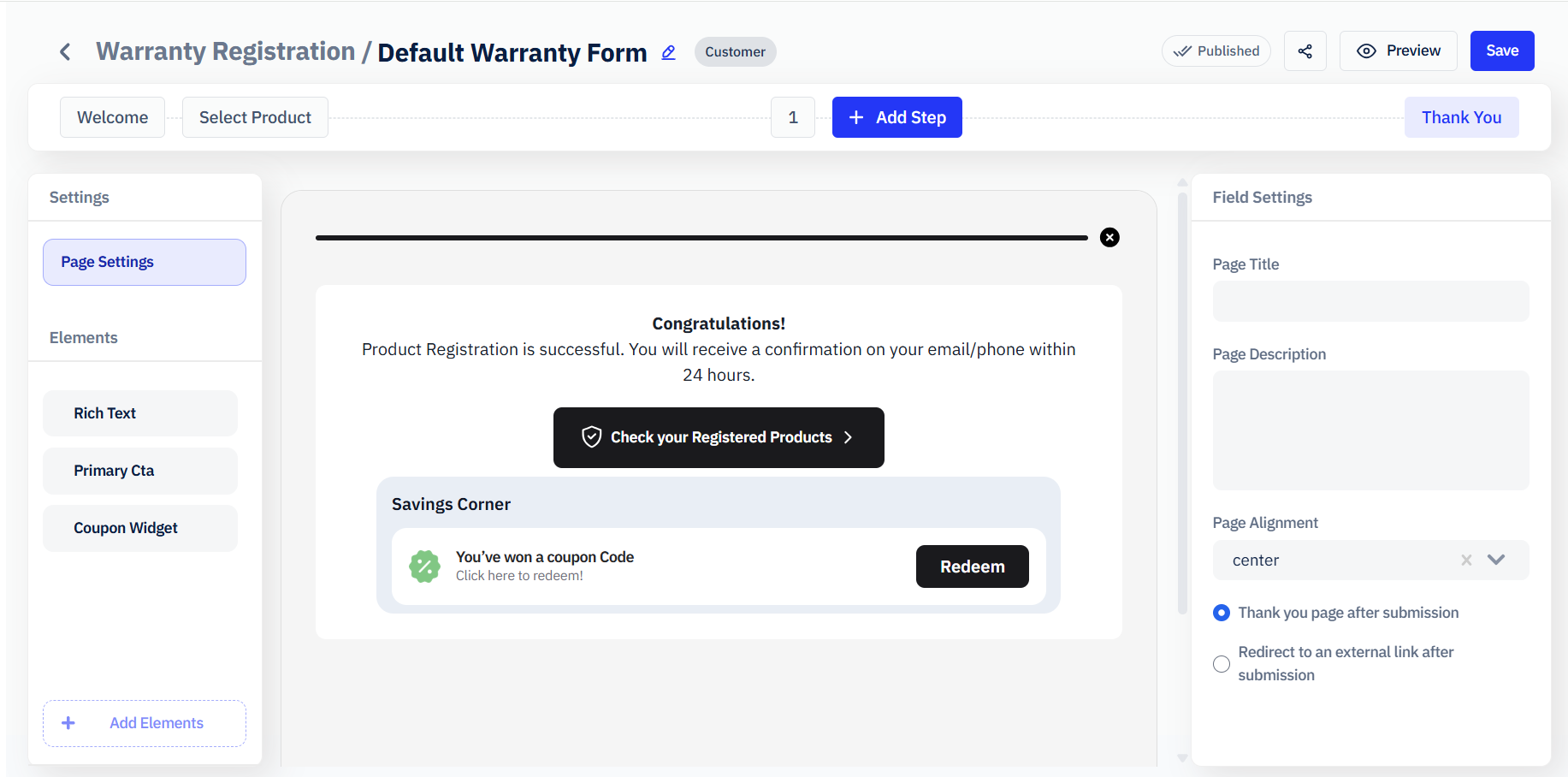
Step 4: Create a New Coupon Rule Set
1. After clicking + Add, a popup window titled:
Add New Coupon Rule Set will appear
Fill in the required details:
Coupon Rule Configuration
Title
Enter the coupon rule title.
Example:
- Welcome Discount
- Warranty Registration Offer
Discount Type
Choose the discount type:
- Fixed Amount
- Percentage
Applies To
Select where the discount will apply:
- Entire Order
Require Minimum Purchase
Enable this option if customers must meet a minimum order amount before using the coupon.
Coupon Expiry
Choose one of the following expiry options:
- After a Certain Number of Hours/Days/Months
- On a Specific Date
Length of Coupon Code
Set the desired coupon code length.
Prefix (Optional)
Add a custom prefix.
Example:
- DYR
- SAVE
Suffix (Optional)
Add a custom suffix if required.
After entering all details, click on Save.
Step 5: Publish the Form
Once the coupon rules are configured:
- Click on Save in the top-right corner.
- Click on Publish.
Your Cash Coupon Code setup is now completed successfully.
Customers will now receive coupon offers after successful warranty registration.
How the Coupon Works
After a customer completes warranty registration:
- The Thank You page displays the coupon widget
- A coupon code is automatically generated
- Customers can redeem the coupon on the Shopify store
- Coupon validity and conditions will follow the configured rule set
Conclusion
By following these steps, you can successfully enable and configure Cash Coupon Codes in the Dyrect warranty registration flow. This feature helps businesses increase customer engagement and encourage repeat purchases through promotional discounts.
Need Assistance?
If you require Dyrect to assist you with an integration, you can do so by following these steps:
- Create a support ticket by submitting a form here or email us at support@dyrect.co
- A support will reach out to you to request access to your Shopify store.
Schedule a Personalize Demo
Related Articles
How Customers Can Redeem the Cash Coupon Code
After successfully submitting the warranty registration form, customers can redeem their coupon code by following the steps below. Step 1: Complete Warranty Registration The customer fills out and submits the warranty registration form successfully. ...How to Approve Warranty Registration?
The guide will walk you through the steps to manage approval-based warranty registrations. In this process, customer-submitted warranties remain in a pending state until reviewed and either approved or rejected by the client. Follow these simple ...Shopify–Dyrect Auto Warranty Registration Flow
Overview This document explains how Auto Warranty Registration works between Shopify and Dyrect. It covers the required setup in Dyrect and how customer orders on Shopify automatically create warranty registrations in Dyrect. This flow helps ...Extended Warranty Setup Guide
Introduction Extended Warranty allows customers to purchase additional warranty coverage for their products beyond the standard warranty period. Through the Dyrect back office, brands can create warranty plans and display them on the warranty ...How to Edit a Warranty Registration?
Warranty registration is when customers sign up their purchased products to start the warranty coverage. This usually involves entering product details like serial numbers and purchase dates, as well as personal information like contact details. This ...