How to create a Warranty Claim?

How to create a Warranty Claim?

Notes

A warranty claim is a formal request to address and resolve issues with a product covered under warranty. Customers can either submit the request directly or have it handled by the client through the back-office system.

This guide explains the process for creating a warranty claim in simple steps.

Steps to Create a Warranty Claim:

1. Creating a New Service Ticket

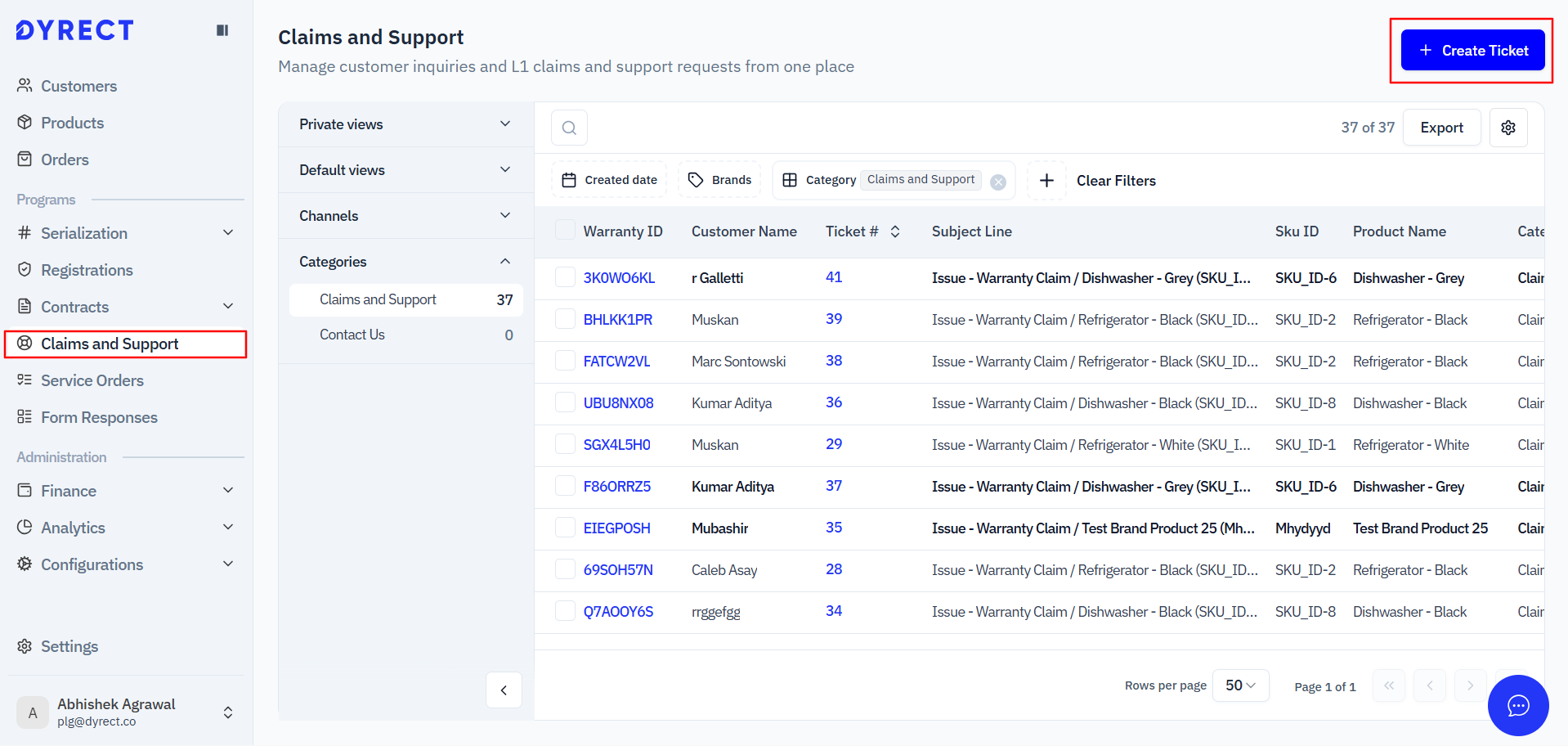
  1. Click on Tickets Under Warranty.
  2. On the top-right corner of the Tickets page, click on the Create Service Ticket button.

2. Entering the Serial Number

  1. A page will open on right side of the page.
  2. Enter the product’s Serial Number or Warranty ID.
  3. Click the Search button.
  4. The system will display the customer’s details on the right-hand side for quick reference and click Next.


3. Providing Required Details
  1. Fill in the necessary fields to complete the warranty claim":
    1. Description of the Issue.
    2. Upload Image (Option)
    3. Priority: Select the urgency level of the request from the dropdown menu. The available options are
      1. Low
      2. Medium
      3. High
      4. Urgent
  2. After entering all the required information, click the Create button.

Conclusion

By following these simple steps, you can create a warranty claim quickly and efficiently. Ensure all the details are accurate to avoid delays in processing the request.


    Need Assistance?

    If you require Dyrect to assist you with an integration, you can do so by following these steps:

    1. Create a support ticket by submitting a form here or email us at support@dyrect.co
      1. A support will reach out to you to request access to your Shopify store.


      Schedule a Personalize Demo

      Book your 30 minutes Personalised Demo with our Onboarding and Solutions Expert
        • Related Articles

        • How to create a support & claims ticket in Dyrect?

          This guide is designed for internal team members only who have access to the Dyrect Back Office. Whether you're handling customer complaints, processing warranty claims, or providing after-sales support, this step-by-step tutorial will help you ...
        • Create shipment and Return/Replacement in Dyrect

          This comprehensive guide walks you through the process of handling returns within the Dyrect App, assuming a service ticket has already been created. It covers essential steps, including generating return and shipping labels, creating repair and ...
        • How to Respond to a Customer’s Claim?

          Responding to a customer involves providing updates on their inquiry or concern, reassuring them of the progress regarding their claim, and offering assurance about its resolution. Clear communication fosters trust and satisfaction. Step-by-Step ...
        • How to Create a Quotation in Dyrect

          Creating a quotation (estimate) in Dyrect helps you share costs with customers and get internal approval before proceeding with repairs or replacements. This guide explains each step clearly so you can generate, save, or submit quotations smoothly ...
        • How to generate estimate on a claim and send for approval?

          This guide provides a simple and clear process for generating an estimate on a claim using the Dyrect Client Portal. It covers the necessary steps to create, save, and submit estimates for approval, ensuring a smooth and efficient workflow for claim ...